
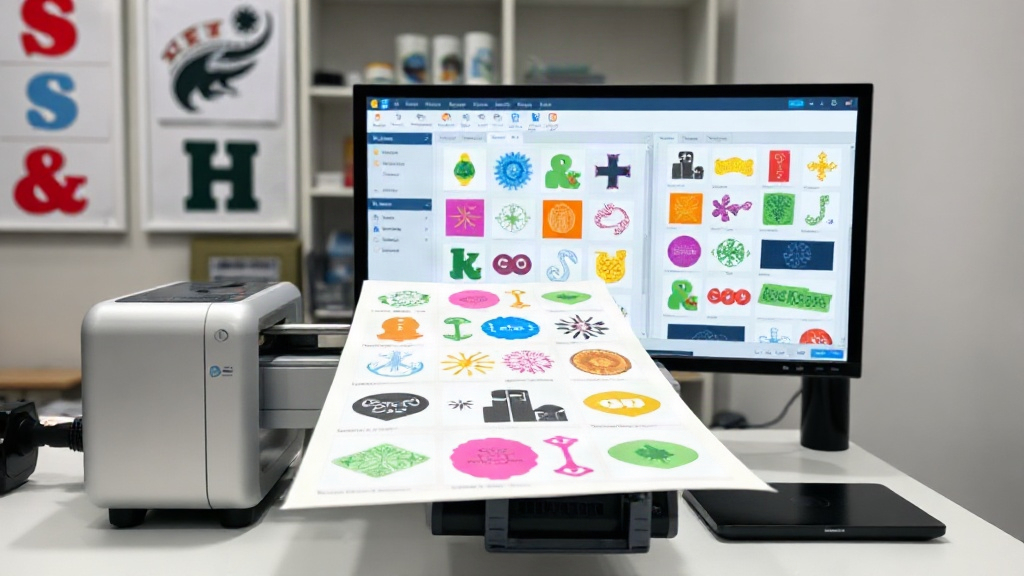
If you're in the custom apparel business, you've probably heard about dtf printing. It's a game-changer for producing vibrant, durable transfers on demand. But as your orders grow, manually arranging transfers on a sheet becomes a bottleneck. That's where a dtf gangsheet builder comes in. This tool lets you combine multiple designs into a single sheet, maximizing efficiency and minimizing waste. In this guide, we'll explore everything you need to know about gang sheets and how to use a builder to supercharge your workflow.
What is a DTF Gang Sheet?
A gang sheet is a large sheet of DTF film that contains multiple designs printed together. Instead of printing each design individually, you arrange them on a single sheet, then print, cure, and cut them apart. This approach saves time, reduces film waste, and lowers ink consumption. It's especially useful for small to medium-sized orders where individual printing would be inefficient.
Why Use a DTF Gangsheet Builder?
Manually creating gang sheets can be tedious and error-prone. A dtf gangsheet builder automates the process, allowing you to upload designs, set quantities, and arrange them optimally on the sheet. The builder calculates the best layout, ensuring minimal gaps and maximum usage of the film. This not only saves time but also reduces material costs. Plus, with drag-and-drop interfaces, even beginners can create professional gang sheets in minutes.
Key Benefits of Using a Builder
- Time Savings: Automate layout and avoid manual placement.
- Cost Reduction: Use less film and ink by optimizing space.
- Consistency: Ensure uniform spacing and alignment across all designs.
- Scalability: Easily handle large orders with multiple designs.
- Error Reduction: Minimize human mistakes in design placement.
How to Create a Gang Sheet with DTF Pro Max
DTF Pro Max offers a powerful dtf gangsheet builder that simplifies the entire process. Here's a step-by-step guide to get you started:
Step 1: Upload Your Designs
Start by uploading your artwork files. The builder supports PNG, JPG, and other common formats. Ensure your designs have transparent backgrounds for best results. You can upload multiple files at once, and the builder will automatically detect their dimensions.
Step 2: Set Quantities and Sizes
For each design, specify how many copies you need and adjust the size if necessary. The builder allows you to scale designs proportionally, so you can fit more on a sheet without distorting the artwork.
Step 3: Arrange Designs on the Sheet
The builder's intelligent algorithm will automatically arrange your designs on the sheet, optimizing for space. You can also manually adjust positions if you prefer a specific layout. Use the drag-and-drop tool to move designs around, and the builder will snap them into place for perfect alignment.
Step 4: Preview and Adjust
Before printing, preview the gang sheet to ensure everything looks correct. Check for any overlapping designs or excessive empty spaces. The builder provides a visual representation, so you can make adjustments as needed.
Step 5: Export and Print
Once satisfied, export the gang sheet as a high-resolution file. Print it on your DTF printer using the recommended settings for film and ink. After printing, apply hot melt powder, cure, and cut the transfers apart.
Best Practices for DTF Gang Sheets
To get the most out of your gang sheets, follow these best practices:
- Nesting: Arrange designs closely to minimize wasted space. The builder does this automatically, but you can fine-tune it.
- Orientation: Rotate designs if needed to fit more on the sheet.
- Margins: Leave a small margin around each design for easy cutting.
- Color Management: Use consistent color profiles to ensure accurate colors across all designs.
- Testing: Print a test sheet with new designs to check for quality before mass production.
Common Mistakes to Avoid
Even with a builder, some pitfalls can hinder your efficiency. Avoid these common mistakes:
- Overcrowding: Placing designs too close can cause cutting errors. Leave adequate spacing.
- Ignoring Film Size: Ensure your designs fit within the printable area of your film roll.
- Low-Resolution Artwork: Always use high-resolution images to avoid pixelation.
- Skipping Previews: Always preview before printing to catch mistakes.
Frequently Asked Questions
What is the maximum sheet size I can create?
The maximum size depends on your DTF printer and film roll. Common widths are 13, 17, 24, and 36 inches. The length can be customized up to several feet. DTF Pro Max's builder allows you to set custom dimensions within your printer's capabilities.
Can I reuse a gang sheet layout for future orders?
Yes, most builders, including DTF Pro Max, let you save layouts as templates. This is ideal for recurring orders, as you can quickly reload and print without re-arranging.
How do I ensure accurate colors on my gang sheet?
Use ICC profiles specific to your printer, ink, and film. Calibrate your monitor regularly. The builder does not alter colors, but it's crucial to have a color-managed workflow.
Is a gangsheet builder suitable for beginners?
Absolutely. Builders are designed with user-friendly interfaces, often with drag-and-drop and auto-arrange features. Even if you're new to DTF printing, you can create gang sheets with minimal training.
What file formats are supported?
Most builders accept PNG, JPG, PDF, and sometimes PSD. For best results, use PNG with transparent backgrounds. DTF Pro Max supports all major formats.
Conclusion
Incorporating a dtf gangsheet builder into your DTF printing workflow is a smart move for any business looking to scale. It streamlines production, reduces costs, and ensures consistent quality. Whether you're a solo entrepreneur or running a large print shop, tools like DTF Pro Max's builder can give you a competitive edge. Start experimenting with gang sheets today and watch your efficiency soar.